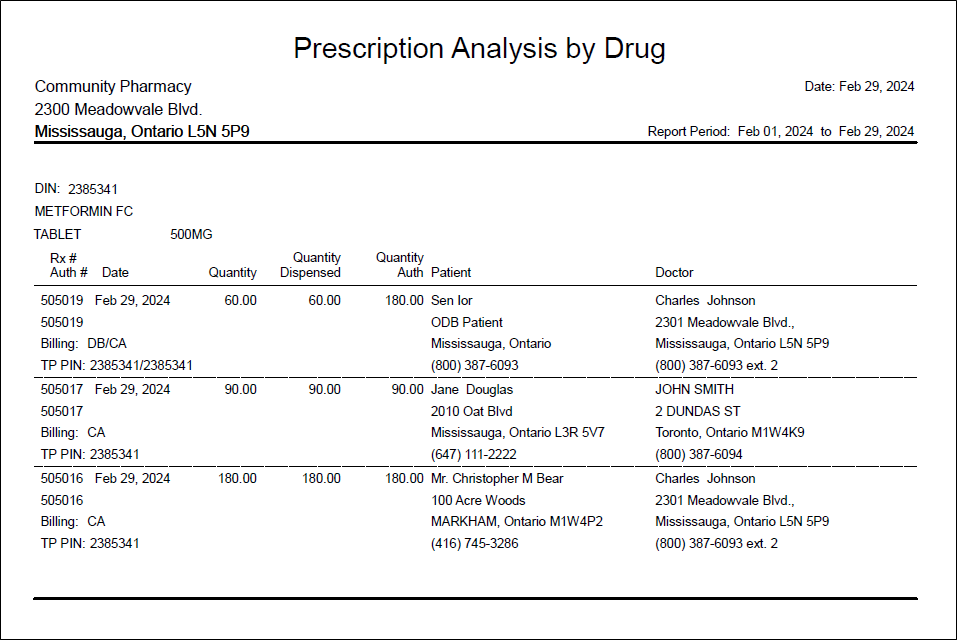
Analysis for Drug/Prescriber
The Analysis for Drug/Prescriber report provides a list of prescriptions that have been dispensed during the report period. Since this report identifies patients who were dispensed a particular drug, it is useful for drug recalls.
 Criteria
-
Start Date and End Date - generates the report for prescriptions filled within the date range.
-
Drug - lists prescriptions filled for the specified drug or mixture. Multiple DINs can be specified by separating each drug name or DIN by a forward slash (/), similar to how multiple drugs are entered in the Intake window. When multiple drugs are listed on the report, they are sorted by DIN.
To quickly select multiple strengths of the same drug:
-
Enter the drug's trade or generic name in the Drug field (e.g., metformin).
-
Select Search. The Drug and Mixture Search window opens, displaying all strengths and forms of the drug.
-
Hold down the CTRL or SHIFT key on the keyboard and highlight all applicable DINs.
-
Select OK. The Drug field will be populated with "Several..."
-
-
Prescriber - generates the report for the specified prescriber.
-
TP PIN - lists prescriptions submitted to third parties using the specified TP PIN. The TP PIN is entered in the Rx Detail Third Party tab prior to filling a prescription. Multiple TP PINs can be specified by separating each TP PIN by a forward slash (/).
-
Third Party - lists prescriptions submitted to the specified third party.
-
Group - lists prescriptions filled for the specified group.
-
Custom Class - generates the report for prescriptions filled for drugs belonging to the specified custom class.
-
Therapeutic Class - generates the report for prescriptions filled for drugs belonging to the specified therapeutic class.
-
Report Group - generates the report for the selected report group(s). Only drug-type and mixture-type report groups are available for selection. If more than one is selected, drugs or mixtures that belong to at least one of the report groups and meet the other selected criteria will display on the report.
Extended
-
Display Drug Name As - determines how the drug name appears on the report.
-
Include Deceased Patients - includes prescriptions for deceased patients on the report. If a patient is deceased, a *DECEASED* indicator appears to the left of the patient's address. When the checkbox is OFF (default), the report excludes deceased patients.
-
Show Last Filled Rx Only - includes the most recent fill as listed in the audit history, provided it was filled within the reporting period selected. Once this checkbox is selected, the Start Date and End Date fields become disabled.
Sort Options
-
Drug Name - sorts prescriptions alphabetically in ascending order by generic name.
-
Prescriber - sorts prescriptions alphabetically in ascending order by the prescriber's last name.
-
Third Party - sorts prescriptions alphabetically in ascending order by the first bill code.
-
Group - sorts prescriptions alphabetically in ascending order by group name.
-
Custom Class - sorts prescriptions alphabetically in ascending order by custom class description.
-
Report Group - sorts prescriptions alphabetically in ascending order by first report group name.